


Arab American
Heritage Month
The Multicultural Student Services division is proud to host a live presentation on Arab American history and culture by the Arab American National Museum.
Business
Health Science
Nursing
IT & Engineering
83 Total Programs

Celebrate Diversity Month
To commemorate Celebrate Diversity Month, DEIJ Baker College has planned a month of learning and fun-filled celebrations.
Learn Your Way
No matter your lifestyle or learning style, Baker College can help you keep your future moving forward. Mix and match multiple ways to take classes to create the academic experience that works best for you.

OnCampus
- Traditional classroom experience
- On-campus sessions
- 16-week semesters


OnlineLive
- 100% online, set meeting times
- Live, real-time virtual sessions
- 8- or 16-week semesters
We Meet You Where You Are
Whether you’re a recent high school graduate or a working adult with a family, we can connect you with the education, resources, and opportunities you need to earn your degree and achieve professional success.
High School Students
Baker College is designed to set you up for success. Small class sizes make it easy to make friends and find study groups, and our student housing options offer convenient access to the supportive community and helpful resources you’ll find on campus.

Adult Learners
Going back to school has its challenges, but we’re here to help you meet them head-on. Our flexible hours and convenient online learning options make it easy to achieve your goals, even if you have a busy schedule.

Transfer Students
When you transfer to Baker College, we’ll make sure you get maximum credit for the coursework you’ve already completed. Maybe that’s why more transfer students choose us than any other private school in the state of Michigan.

Graduate Programs
Sometimes, an undergraduate degree is just a starting point. We have a wide variety of master’s degree programs that can help you build the knowledge and skills you need to take your career to the next level.

Military Members & Families
Baker College is proud to stand with those who serve. Whether you’re on active duty or making the transition to civilian life, we can help you get a top-quality education at a price you can afford.


We’re Ready When You Are
Classes start every 8 weeks.
 On Campus
  Online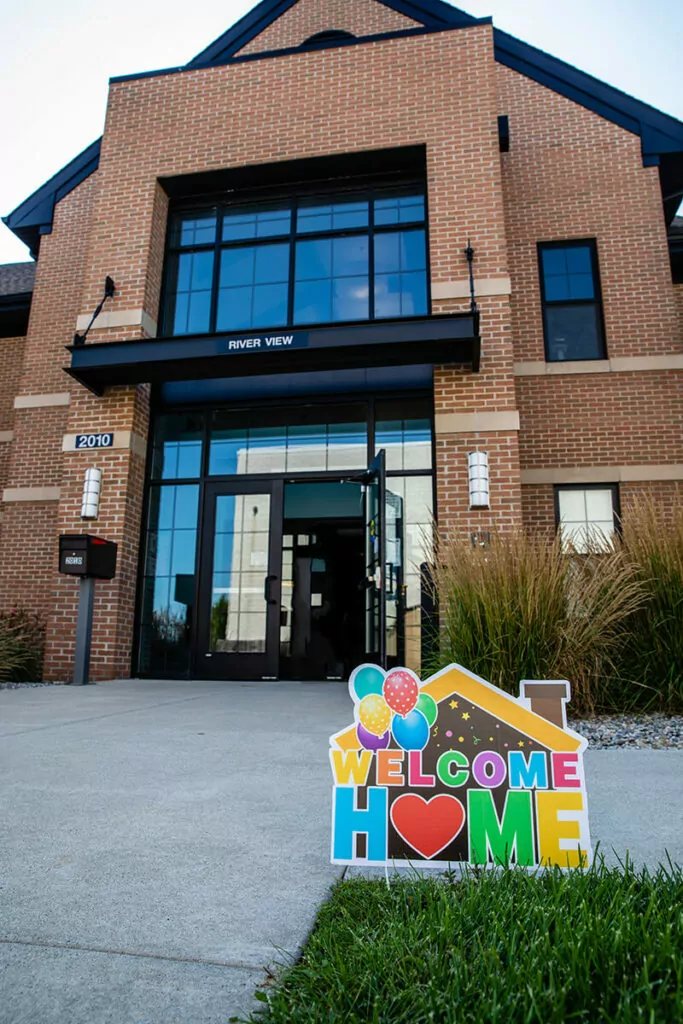
Enjoy the Freedom of Free Housing
New students enrolling at our Cadillac, Owosso, or Port Huron campuses can take advantage of the BC Housing Scholarship, which covers 100% of housing costs for the 2024-25 academic year and offers significant discounts in the second year.
Explore Our Wide Variety of In-Demand Degree Programs

Business

Education

IT & Engineering

Health Science

Nursing

Occupational Therapy

Social Science

Liberal Arts & Sciences
Everything You Need to Succeed
At Baker College, we’re invested in your success and committed to providing you with the resources you need to bring your dreams to life.
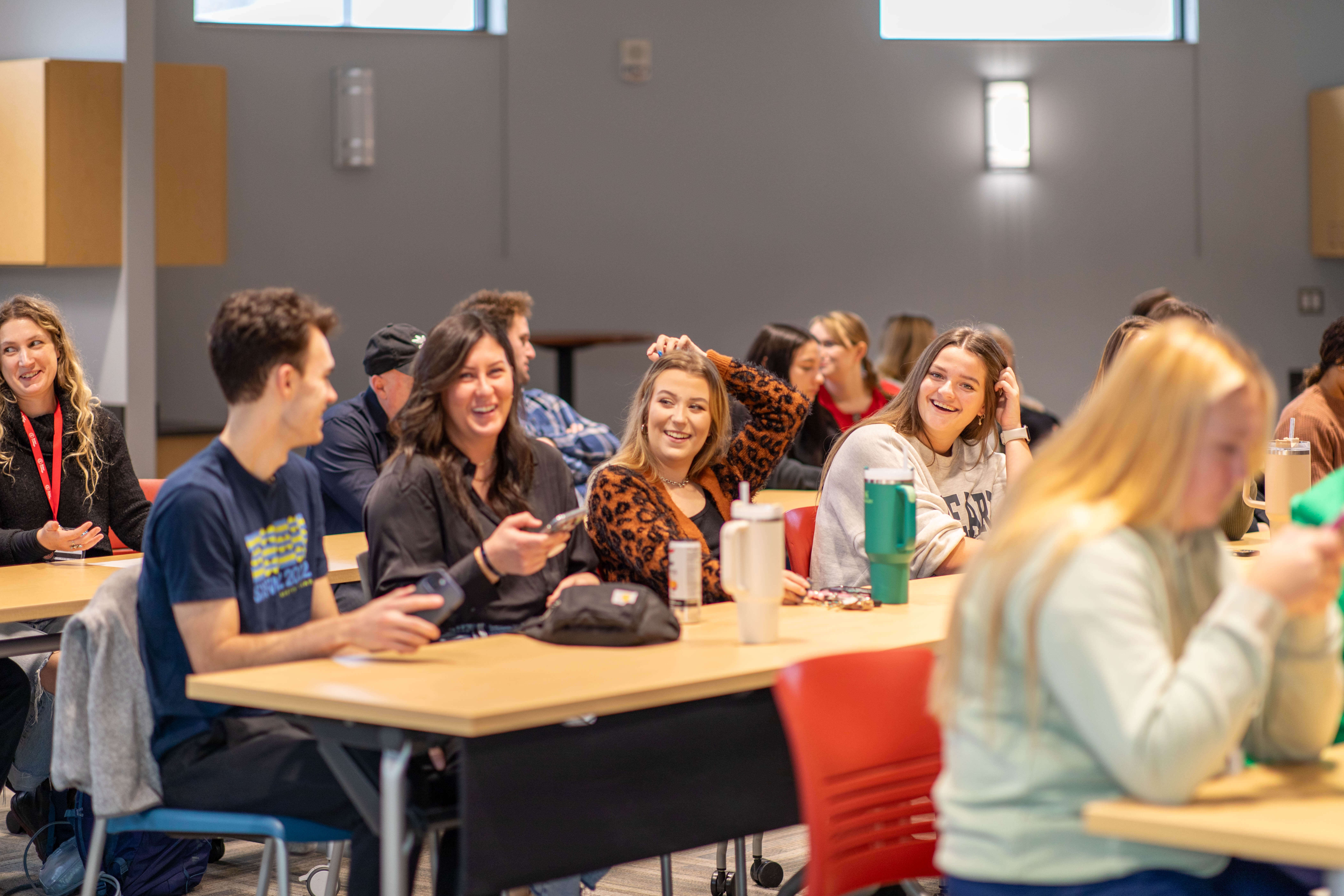
We keep our class sizes small, so you can count on getting the attention you deserve. Not only that, but our faculty is made up of experienced instructors who have extensive backgrounds working in disciplines they teach.
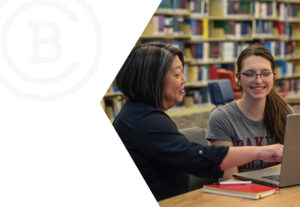
If you need additional support outside the classroom, we’ve got you covered there, too. Our Academic Resource Center puts a variety of helpful services at your fingertips, including an always-on online library, virtual tutoring, and free lifetime employment assistance.

What’s Happening
Nonprofit.
All for you.
Founded more than a century ago, Baker College is accredited by The Higher Learning Commission to grant associate, bachelor’s, master’s, and doctoral degrees. We’ve been a leader in the online education space since 1994, and also have several campuses conveniently located throughout the state of Michigan.
As a nonprofit institution, our goals aren’t financial. Your education is our bottom line. That’s why we offer a variety of financial aid options and some of the most affordable tuition rates around.
Set Your Success in Motion
Gain the real-world knowledge and in-demand skills to move your life and career forward.